
Sleep mode feels like a small kindness: work stays open, the screen goes dark, and the day can restart in seconds.
Yet sleep is not a pause button for a computer’s inner life. Memory stays powered, wake timers can trigger sync or updates, and USB ports may watch for a key press. That low-level activity draws a little electricity, creates a little heat, and keeps yesterday’s caches intact. After enough nights, many machines begin to feel slightly heavier to run, even though nothing obvious changed. These seven myths explain why, and what habits keep performance steady without turning life into a constant reboot ritual.
Sleep Uses Zero Power
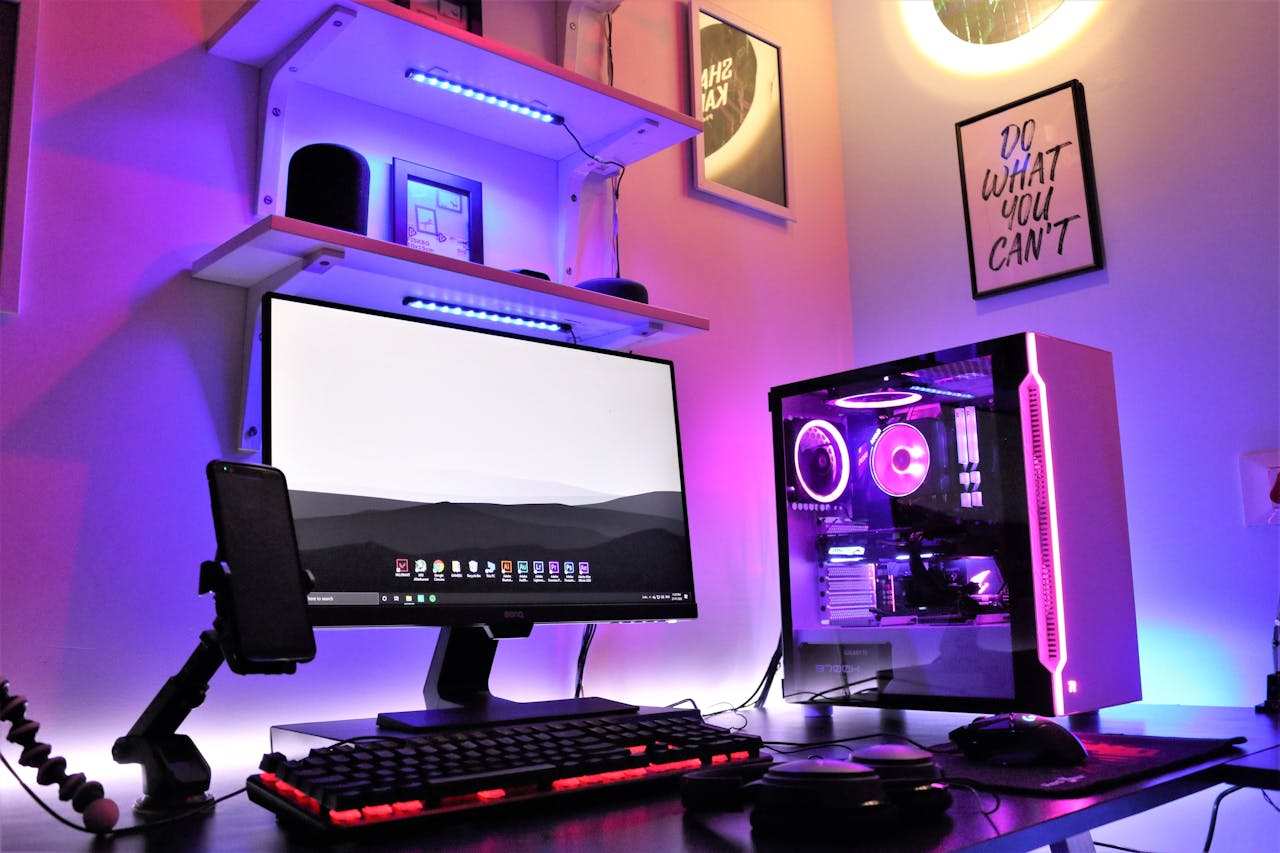
Sleep still needs power because open apps remain parked in RAM, ready to resume in the same state. That standby draw is usually modest, often around one to 15W, but it is not nothing.
On desktops, the cost shows up as a slow drip on the bill and a case that never fully cools, which can keep dust warm and fans cycling more than necessary. Over time, persistent warmth can nudge components to throttle sooner under load, making games, exports, and big spreadsheets feel less snappy. Sleep fits a lunch break, not a long weekend. Hibernate saves the session to storage and lets the machine idle at near-zero power for travel.
Sleep Is The Same As Shutting Down

Sleep preserves the exact working state, but it also preserves the tiny messes that build up while Windows runs. Shutting down ends the session, yet even that can keep some data around when Fast Startup is enabled.
Cold boots are faster than they used to be thanks to SSDs and RAM, but they still re-check hardware, reload startup apps, and rebuild parts of the system state. When odd stutters, audio bugs, or stubborn update prompts appear, the cleanest reset is often a proper Restart, not a quick sleep-wake loop. Restart forces drivers and core services to re-initialize, flushing stale caches that quietly drag performance down.
A PC Never Needs A Real Reboot

A PC can run for weeks without crashing, yet uptime is not the same as staying healthy. Long sessions let background processes pile up, and small memory leaks can slowly nibble at responsiveness.
Many technicians recommend a real power cycle at least once per month, and often once per week, because it clears stuck services and refreshes system caches. When Fast Startup is on, a Restart is the surest way to force a true re-initialization instead of carrying leftovers forward. That habit also helps pending updates finish cleanly, which keeps boot times and app launches predictable. Sleep handles convenience; rebooting protects speed.
Sleep Stops Background Activity
Sleep is often imagined as total silence, but plenty can still happen behind a closed lid. Wake timers may run scheduled maintenance, app updates, or email sync, and some USB devices can wake the system with a bump.
That background churn can keep disks active, interrupt deeper power-saving states, and leave a laptop warmer inside a bag. It also explains why a machine sometimes seems to wake for no clear reason, then runs slower later with fresh tasks piled on. Experts usually suggest reviewing wake timers, and limiting which keyboards, mice, and adapters are allowed to wake the PC, especially before travel or conferences.
Network Sleep Is Risk Free
Many systems keep Ethernet or Wi-Fi partially awake in sleep so they can fetch updates or accept a Wake-on-LAN signal. That convenience is also a doorway: if remote wake and remote access are left loose, the computer is not truly isolated.
Beyond security, always-on networking can add wake events, background transfers, and small CPU spikes that leave fans spinning longer than expected. Tech support teams often recommend disabling wake on network unless it is genuinely needed, and using strong Windows sign-in protection plus solid router settings. When the machine is fully off, remote entry becomes far harder for most homes.
Sleep Is Always Better For Laptops

Sleep is gentle on a laptop only when the battery has room to breathe. Left asleep and unplugged for too long, the machine keeps sipping power until the charge drops low, or even hits empty. On some models, the loss can reach 10% overnight.
Lithium-ion cells tend to age best when they live between about 20% and 80%, so letting a laptop drift to fumes for days can speed up wear. Modern standby can wake for maintenance, adding heat inside a backpack. It turns wake-ups into slow recoveries as the system reloads with limited power. For overnight breaks away from a charger, a full shutdown or hibernate is often kinder than sleep.
Sleep Keeps Long Tasks Safe
Sleep is great for instant return, but it usually halts the kind of work that needs steady processing. Large downloads, file transfers, video exports, and 3D renders can pause midstream, then resume with errors or delays.
Home media servers can also go quiet when the host sleeps, cutting off access to shared movies or music unless remote wake is configured correctly. Performance suffers later because the unfinished task competes with morning startup apps, updates, and browser tabs. The clean approach is simple: keep the PC awake for long jobs, or switch to hibernate only after the work is done, then let it cool fully.